
Data Migration Shell Script Example

A nice little script written around the rsync command used to successfully migrate large amounts of data between NFS filesystems, avoiding .snapshot folders in the process.  A simple script in essence but a nice reference example nonetheless on the use of variables, functions, if statements, case statements, patterns and some useful commands, e.g. using sed to remove whitespace at the front of a variable returned by wc.

A simple but proper shell script that can almost certainly be built/improved upon using tee to write std output to a log file as well as the screen for instance, and using find to subsequently count the number of files afterwards because df is unlikely match to the nearest megabyte across different filesystems served by different NAS’s for comparison/verification.

#!/usr/bin/bash

#Generic script for migrating file systems.
#Variables Section
  SOURCE=$1
  DEST=$2

#Functions section
  function migratenonhiddenfolders(){

    echo “Re-Synchronising non-hidden top level folders only…”

  #Synchronise the data
    ls -l $SOURCE | grep ^d | awk {‘print $9’} | while read EACHDIR; do
      echo “Syncing ${SOURCE}/${EACHDIR} with ${DEST}/${EACHDIR}”
      timex /usr/local/bin/rsync -au ${SOURCE}/${EACHDIR}/* ${DEST}/${EACHDIR}
  done
  }

#Code section
  if [[ -z $1 ]];then
    echo “No Source or Destination specified”
    echo “Usage: migrate.sh /<source_fs> /<destination_fs>”
    exit
  fi
  if [[ -z $2 ]];then
    echo “No Destination specified”
    echo “Usage: migrate.sh /source_fs> /<destination_fs>”
    exit
  fi

#Source and Destination filesystems have been specified
  echo “Source filesystem: $SOURCE”
  FOLDERCOUNT=`ls -l $SOURCE | grep ^d | wc -l | sed -e ‘s/^[ \t]*//’`
  echo “The $FOLDERCOUNT source folders are…”
  ls -l $SOURCE | grep ^d | awk {‘print $9’}
  echo
  echo “Destination filesystem: $DEST”
  echo
  echo -n “Please confirm the details are correct [Yes/No] > “
  read CONFIRM
    case $CONFIRM in
        [Yy] | [Yy][Ee][Ss])
          migratenonhiddenfolders
          ;;

       *)
        echo
        echo “User aborted.”
        exit
       ;;
    esac

#Clean exit
exit

Improved version (with logging) shown below.

#!/usr/bin/bash

#Generic script for migrating file systems.
#Variables Section
  SOURCE=$1
  DEST=$2

#Functions section
  function migratenonhiddenfolders(){

    echo “Migrating ${SOURCE} to ${DEST} at `date`” >> ~/migration.log
    echo “Re-Synchronising non-hidden top level folders only…” | tee -a ~/migration.log
    #Synchronise the data
    ls -l $SOURCE | grep ^d | awk {‘print $9’} | while read EACHDIR; do
    echo “Syncing ${SOURCE}/${EACHDIR} with ${DEST}/${EACHDIR} at `date`” | tee -a ~/${DEST}_${EACHDIR}.log ~/${DEST}.log ~/migration.log
    timex /usr/local/bin/rsync -au ${SOURCE}/${EACHDIR}/* ${DEST}/${EACHDIR} | tee -a ~/${DEST}_${EACHDIR}.log ~/${DEST}.log ~/migration.log
    echo “Completed migrating to ${DEST}/${EACHDIR} at `date`” | tee -a ~/${DEST}_${EACHDIR}.log ~/${DEST}.log ~/migration.log
    done
  }

#Code section
  if [[ -z $1 ]];then
    echo “No Source or Destination specified”
    echo “Usage: migrate.sh /<source_fs> /<destination_fs>”
    exit
  fi
  if [[ -z $2 ]];then
    echo “No Destination specified”
    echo “Usage: migrate.sh /source_fs> /<destination_fs>”
    exit
  fi

#Source and Destination filesystems have been specified
  echo “Source filesystem: $SOURCE”
  FOLDERCOUNT=`ls -l $SOURCE | grep ^d | wc -l | sed -e ‘s/^[ \t]*//’`
  echo “The $FOLDERCOUNT source folders are…”
  ls -l $SOURCE | grep ^d | awk {‘print $9’}
  echo
  echo “Destination filesystem: $DEST”
  echo
  echo -n “Please confirm the details are correct [Yes/No] > “
  read CONFIRM
  case $CONFIRM in
    [Yy] | [Yy][Ee][Ss])
      migratenonhiddenfolders
     ;;
  *)
      echo
      echo “User aborted.”
      exit
      ;;
  esac

#Clean exit
  exit

###########################################################
##
## Data Migration script by M.D.Bradley, Cyberfella Ltd
## http://www.cyberfella.co.uk/2013/08/09/data-migration/
##
## Version 1.0 9th August 2013
###########################################################

Did you like this?
Tip cyberfella with Cryptocurrency

Donate Bitcoin to cyberfella

Scan to Donate Bitcoin to cyberfella
Scan the QR code or copy the address below into your wallet to send some bitcoin:

Donate Bitcoin Cash to cyberfella

Scan to Donate Bitcoin Cash to cyberfella
Scan the QR code or copy the address below into your wallet to send bitcoin:

Donate Ethereum to cyberfella

Scan to Donate Ethereum to cyberfella
Scan the QR code or copy the address below into your wallet to send some Ether:

Donate Litecoin to cyberfella

Scan to Donate Litecoin to cyberfella
Scan the QR code or copy the address below into your wallet to send some Litecoin:

Donate Monero to cyberfella

Scan to Donate Monero to cyberfella
Scan the QR code or copy the address below into your wallet to send some Monero:

Donate ZCash to cyberfella

Scan to Donate ZCash to cyberfella
Scan the QR code or copy the address below into your wallet to send some ZCash:

Trimming whitespace off the beginning of a variable in bash

Sometimes a variable can be returned with a few empty (whitespace) characters in front of it.  This is not too much of an issue when running individual commands ending in a | wc -l to count the number of lines, but when you want to sandwich the variable in between two words in a more meaningful echo statement in a script, that “gap” between the words and the numbers looks untidy.  To remove the preceeding whitespace, append the following into the command used to build the variable (between the back ticks `   `).

     sed -e ‘s/^[ \t]*//’

e.g. to count the number of folders…

     FOLDERCOUNT=`ls -l $SOURCE | grep ^d | wc -l | sed -e ‘s/^[ \t]*//’`

     echo “The $FOLDERCOUNT source folders are…”

Will output this…

     The 4 source folders are…

instead of this…

     The            4 source folders are…

Did you like this?
Tip cyberfella with Cryptocurrency

Donate Bitcoin to cyberfella

Scan to Donate Bitcoin to cyberfella
Scan the QR code or copy the address below into your wallet to send some bitcoin:

Donate Bitcoin Cash to cyberfella

Scan to Donate Bitcoin Cash to cyberfella
Scan the QR code or copy the address below into your wallet to send bitcoin:

Donate Ethereum to cyberfella

Scan to Donate Ethereum to cyberfella
Scan the QR code or copy the address below into your wallet to send some Ether:

Donate Litecoin to cyberfella

Scan to Donate Litecoin to cyberfella
Scan the QR code or copy the address below into your wallet to send some Litecoin:

Donate Monero to cyberfella

Scan to Donate Monero to cyberfella
Scan the QR code or copy the address below into your wallet to send some Monero:

Donate ZCash to cyberfella

Scan to Donate ZCash to cyberfella
Scan the QR code or copy the address below into your wallet to send some ZCash:

A Waste of Space

I recently witnessed a huge 40% increase in disk space used moving some files from one SAN to another despite the number of files being the same on both the source and destination filesystems/SANs.

The reason this happens is primarily down to block size.

Ordinarily you wouldn’t notice much difference as all files are different sizes and most files are bigger than the minimum block size of the filesystem, so although some space always gets wasted as the last bit of data is written to the last block before starting the next file in a new block, the amount of wasted space shouldn’t be hugely different between filesystems.

But, what if the files are all roughly the same size, and that size is smaller than the minimum block size, i.e. you’re writing millions of 4Kb files into a filesystem that has an 8Kb block size?  Ouch is the answer, as over half of your filesystem capacity will be wasted.

wasted-space


The answer is to make sure that you know a bit more about the data that’s going to be written to the destination filesystem than just it’s top level capacity (returned by a command such as df -h, which actually tells you how many blocks of data are used on the entire filesystem multiplied by the block size to give a more humanly meaningful answer in KB/MB/GB instead of number of just blocks occupied).

Did you like this?
Tip cyberfella with Cryptocurrency

Donate Bitcoin to cyberfella

Scan to Donate Bitcoin to cyberfella
Scan the QR code or copy the address below into your wallet to send some bitcoin:

Donate Bitcoin Cash to cyberfella

Scan to Donate Bitcoin Cash to cyberfella
Scan the QR code or copy the address below into your wallet to send bitcoin:

Donate Ethereum to cyberfella

Scan to Donate Ethereum to cyberfella
Scan the QR code or copy the address below into your wallet to send some Ether:

Donate Litecoin to cyberfella

Scan to Donate Litecoin to cyberfella
Scan the QR code or copy the address below into your wallet to send some Litecoin:

Donate Monero to cyberfella

Scan to Donate Monero to cyberfella
Scan the QR code or copy the address below into your wallet to send some Monero:

Donate ZCash to cyberfella

Scan to Donate ZCash to cyberfella
Scan the QR code or copy the address below into your wallet to send some ZCash:

Happy SysAdmin day

It’s July 26th, and that means one thing.  it’s SysAdmin Day.  Make sure you show your systems admin some appreciation today.  Or not.  The choice is entirely yours.

http://sysadminday.com/about-sysadmin-day/sysadwhat/

Did you like this?
Tip cyberfella with Cryptocurrency

Donate Bitcoin to cyberfella

Scan to Donate Bitcoin to cyberfella
Scan the QR code or copy the address below into your wallet to send some bitcoin:

Donate Bitcoin Cash to cyberfella

Scan to Donate Bitcoin Cash to cyberfella
Scan the QR code or copy the address below into your wallet to send bitcoin:

Donate Ethereum to cyberfella

Scan to Donate Ethereum to cyberfella
Scan the QR code or copy the address below into your wallet to send some Ether:

Donate Litecoin to cyberfella

Scan to Donate Litecoin to cyberfella
Scan the QR code or copy the address below into your wallet to send some Litecoin:

Donate Monero to cyberfella

Scan to Donate Monero to cyberfella
Scan the QR code or copy the address below into your wallet to send some Monero:

Donate ZCash to cyberfella

Scan to Donate ZCash to cyberfella
Scan the QR code or copy the address below into your wallet to send some ZCash:

Obtain Status Summary from FC Switches in your SAN

Keep SAN switch status info in one place and analyse it daily.  This can be useful for SAN reporting purposes.

It’s a little script I knocked together that looks “bigger” than it actually is (I could improve it further by introducing another loop to eliminate a lot of repetitive code).

It has the pre-requisite of copying ssh keys to each switch to allow a remote nasadmin user to authenticate without passing a password across the network prior to running the show interface brief command and passing the output back to the remote script over an encrypted connection.

Don’t put passwords in your scripts, especially for user accounts that have superuser access to important stuff like your fc switches.  Hacking (in the context of Cracking) is an opportunist crime that exploits bad practices like this to gain entry to the parts of your infrastructure that a denial of service attack would cause the most damage.

#!/bin/sh

#Variables
MYDIR=/local/home/nasadmin/switches/
# Substitue names of fc-switches below…
FC_SWITCHES=( fc-switch-1 fc-switch-2 fc-switch-3 fc-switch-4 )

#Code Section
#Obtain detail from each switch
#(requires ssh keys to be set up on each switch to enable passwordless ssh authentication of admin user on central node)
for EACHFCSWITCH in ${FC_SWITCHES[@]};
# begin first loop
do
/usr/bin/ssh -q admin@${EACHFCSWITCH} “show interface brief” | tee ${MYDIR}/ShowInterfaceBrief_${EACHFCSWITCH}
done

#All Show Interface Brief information collected.

#Process information to summarize it in /local/home/nasadmin/switches/SwitchSummary
rm ${MYDIR}/SwitchSummary} 2>&1
cd ${MYDIR}
ls -1 ${MYDIR} | grep ^Sh | while read EACHSWITCH
do
VAR_in=`grep “in” ${EACHSWITCH} | wc -l`
VAR_fc=`grep “fc” ${EACHSWITCH} | wc -l`
VAR_up=`grep “up” ${EACHSWITCH} | wc -l`
VAR_notConnected=`grep “notConnected” ${EACHSWITCH} | wc -l`
VAR_down=`grep “down” ${EACHSWITCH} | wc -l`
VAR_trunking=`grep “trunking” ${EACHSWITCH} | wc -l`
VAR_sfpAbsent=`grep “sfpAbsent” ${EACHSWITCH} | wc -l`
VAR_errDisabled=`grep “errDisabled” ${EACHSWITCH} | wc -l`

echo ${EACHSWITCH} >> ${MYDIR}/SwitchSummary
echo “in ${VAR_in}” >> ${MYDIR}/SwitchSummary
echo “fc ${VAR_fc}” >> ${MYDIR}/SwitchSummary
echo “up ${VAR_up}” >> ${MYDIR}/SwitchSummary
echo “notConnected ${VAR_notConnected}” >> ${MYDIR}/SwitchSummary
echo “down ${VAR_down}” >> ${MYDIR}/SwitchSummary
echo “trunking ${VAR_trunking}” >> ${MYDIR}/SwitchSummary
echo “sfpAbsent ${VAR_sfpAbsent}” >> ${MYDIR}/SwitchSummary
echo “errDisabled ${VAR_errDisabled}” >> ${MYDIR}/SwitchSummary
echo ” ” >> ${MYDIR}/SwitchSummary
done

#Process information to summarize it in /local/home/nasadmin/switches/SwitchSummary.csv

echo -n “Switch,” > ${MYDIR}/SwitchSummary.csv
ls -1 ${MYDIR} | grep Show | cut -d_ -f2 | while read EACHSWITCH
do
echo -n “${EACHSWITCH},” >> ${MYDIR}/SwitchSummary.csv
done
echo “” >> ${MYDIR}/SwitchSummary.csv

echo -n “in,” >> ${MYDIR}/SwitchSummary.csv
ls -1 ${MYDIR} | grep Show | while read EACHSWITCH
do
VAR_in=`grep “in” ${EACHSWITCH} | wc -l`
echo -n “${VAR_in},” >> ${MYDIR}/SwitchSummary.csv
done
echo “” >> ${MYDIR}/SwitchSummary.csv

echo -n “fc,” >> ${MYDIR}/SwitchSummary.csv
ls -1 ${MYDIR} | grep Show | while read EACHSWITCH
do
VAR_fc=`grep “fc” ${EACHSWITCH} | wc -l`
echo -n “${VAR_fc},” >> ${MYDIR}/SwitchSummary.csv
done
echo “” >> ${MYDIR}/SwitchSummary.csv

echo -n “notConnected,” >> ${MYDIR}/SwitchSummary.csv
ls -1 ${MYDIR} | grep Show | while read EACHSWITCH
do
VAR_notConnected=`grep “notConnected” ${EACHSWITCH} | wc -l`
echo -n “${VAR_notConnected},” >> ${MYDIR}/SwitchSummary.csv
done
echo “” >> ${MYDIR}/SwitchSummary.csv

echo -n “down,” >> ${MYDIR}/SwitchSummary.csv
ls -1 ${MYDIR} | grep Show | while read EACHSWITCH
do
VAR_down=`grep “down” ${EACHSWITCH} | wc -l`
echo -n “${VAR_down},” >> ${MYDIR}/SwitchSummary.csv
done
echo “” >> ${MYDIR}/SwitchSummary.csv

echo -n “trunking,” >> ${MYDIR}/SwitchSummary.csv
ls -1 ${MYDIR} | grep Show | while read EACHSWITCH
do
VAR_trunking=`grep “trunking” ${EACHSWITCH} | wc -l`
echo -n “${VAR_trunking},” >> ${MYDIR}/SwitchSummary.csv
done
echo “” >> ${MYDIR}/SwitchSummary.csv

echo -n “sfpAbsent,” >> ${MYDIR}/SwitchSummary.csv
ls -1 ${MYDIR} | grep Show | while read EACHSWITCH
do
VAR_sfpAbsent=`grep “sfpAbsent” ${EACHSWITCH} | wc -l`
echo -n “${VAR_sfpAbsent},” >> ${MYDIR}/SwitchSummary.csv
done
echo “” >> ${MYDIR}/SwitchSummary.csv

echo -n “errDisabled,” >> ${MYDIR}/SwitchSummary.csv
ls -1 ${MYDIR} | grep Show | while read EACHSWITCH
do
VAR_errDisabled=`grep “errDisabled” ${EACHSWITCH} | wc -l`
echo -n “${VAR_errDisabled},” >> ${MYDIR}/SwitchSummary.csv
done
echo “” >> ${MYDIR}/SwitchSummary.csv

sed ‘s/,$//’ ${MYDIR}/SwitchSummary.csv >${MYDIR}/SwitchSummaryExcelFormat.csv
rm ${MYDIR}SwitchSummary.csv

#Optionally copy to windows share–> scp S${MYDIR}/witchSummaryExcelFormat.csv windows-server:/windows-share

#Clean exit (before Comments section)
cd –
exit

Did you like this?
Tip cyberfella with Cryptocurrency

Donate Bitcoin to cyberfella

Scan to Donate Bitcoin to cyberfella
Scan the QR code or copy the address below into your wallet to send some bitcoin:

Donate Bitcoin Cash to cyberfella

Scan to Donate Bitcoin Cash to cyberfella
Scan the QR code or copy the address below into your wallet to send bitcoin:

Donate Ethereum to cyberfella

Scan to Donate Ethereum to cyberfella
Scan the QR code or copy the address below into your wallet to send some Ether:

Donate Litecoin to cyberfella

Scan to Donate Litecoin to cyberfella
Scan the QR code or copy the address below into your wallet to send some Litecoin:

Donate Monero to cyberfella

Scan to Donate Monero to cyberfella
Scan the QR code or copy the address below into your wallet to send some Monero:

Donate ZCash to cyberfella

Scan to Donate ZCash to cyberfella
Scan the QR code or copy the address below into your wallet to send some ZCash:

Exchange Management Shell

Some useful client-side commands to run in the Exchange Management Shell on the MBX (Mailbox Server) when diagnosing failed Exchange backups in emc Networker or other product (due to VSS Writer issues) and examples of the expected output.

Get-MailboxDatabase GB-DAG* -Status | select Server,name,LastFullBackup

Server Name LastFullBackup
—— —- ————–
Server1 DAG1-MDB01 23/05/2013 14:10:32
Server1 DAG1-MDB07 28/05/2013 00:06:25

Get-MailboxDatabase GB-DAG* -Status | select Server,name,LastIncrementalBackup

Server Name LastIncrementalBackup
—— —- ———————
Server1 MDB01 04/07/2013 19:44:04
Server1 MDB07 04/07/2013 19:44:04

Get-MailboxDatabase GB* -status | sort-object name | ft name, server, lastf*, lasti*, backupinprogress -auto

Name                        Server                              LastFullBackup              LastIncrementalBackup BackupInProgress
—- —— ————– ——————— —————-
MDB01 Server1 02/07/2013 14:45:11 04/07/2013 19:44:04    False
MDB02 Server1 02/07/2013 14:38:56 04/07/2013 19:42:35     False

Get-MailboxDatabase -Identity GB-DAG1* -Status | sort-object name| ft server,name,backupinprogress -auto

Server Name BackupInProgress
—— —- —————-
Server1-MBX001 DAG1-MDB01 False
Server2-MBX002 DAG1-MDB02 True

Get-MailboxDatabase GB* -status | sort-object name | ft name, server, activationpreference, lastf* -auto

Name Server ActivationPreference LastFullBackup
—- —— ——————– ————–
DAG1-MDB01 Server1-MBX001 {[Server1-MBX001, 1], [Server2-MBX001, 2]} 23/05/2013 14:10:32
DAG1-MDB02 Server2-MBX002 {[Server2-MBX002, 1], [Server1-MBX002, 2]} 28/05/2013 00:06:26

Get-MailboxDatabaseCopyStatus “*\GB*” | sort-object name

DAG1-MDB01\Server2-MBX001 Healthy 0 2 30/05/2013 07:50:56 Healthy
DAG1-MDB01\Server1-MBX001 Mounted 0 0 Healthy

vssadmin list writers
vssadmin 1.1 – Volume Shadow Copy Service administrative command-line tool
(C) Copyright 2001-2005 Microsoft Corp.

Writer name: ‘Task Scheduler Writer’
Writer Id: {d61d61c8-d73a-4eee-8cdd-f6f9786b7124}
Writer Instance Id: {1bddd48e-5052-49db-9b07-b96f96727e6b}
State: [1] Stable
Last error: No error

Writer name: ‘VSS Metadata Store Writer’
Writer Id: {75dfb225-e2e4-4d39-9ac9-ffaff65ddf06}
Writer Instance Id: {088e7a7d-09a8-4cc6-a609-ad90e75ddc93}
State: [1] Stable
Last error: No error


See the active/passive status of each mailbox database how Networker will see it prior to backing it up (or ignoring it if it’s active and passive option is set)

nsrsnap_vss_save -v -?

To reset databases that have backups “In Progress” and reset any “Restartable errors” on VSS Writers, restart the Microsoft Exchange Replication Service on all servers in the DAG.

Did you like this?
Tip cyberfella with Cryptocurrency

Donate Bitcoin to cyberfella

Scan to Donate Bitcoin to cyberfella
Scan the QR code or copy the address below into your wallet to send some bitcoin:

Donate Bitcoin Cash to cyberfella

Scan to Donate Bitcoin Cash to cyberfella
Scan the QR code or copy the address below into your wallet to send bitcoin:

Donate Ethereum to cyberfella

Scan to Donate Ethereum to cyberfella
Scan the QR code or copy the address below into your wallet to send some Ether:

Donate Litecoin to cyberfella

Scan to Donate Litecoin to cyberfella
Scan the QR code or copy the address below into your wallet to send some Litecoin:

Donate Monero to cyberfella

Scan to Donate Monero to cyberfella
Scan the QR code or copy the address below into your wallet to send some Monero:

Donate ZCash to cyberfella

Scan to Donate ZCash to cyberfella
Scan the QR code or copy the address below into your wallet to send some ZCash:

Translate text from lowercase to uppercase

When comparing files on Linux, there are a bunch of tools available to you, which are covered in separate posts on my blog.  This neat trick deserves its own post though -namely converting between upper and lowercase.

Before comparing two text files that have been sorted, duplicates removed with uniq and grepped etc, remember to convert to lower or upper case prior to making final comparison with another file.

tr ‘[:lower:]’ ‘[:upper:]’ <input-file > output-file

My preferred way to compare files isn’t using diff or comm but to use grep…  More often than not it gives me the result I want.

grep -Fxv -f first-file second-file

This returns lines in the second file that are not in the first file.

When comparing files, remember to remove any BLANK LINES.


Did you like this?
Tip cyberfella with Cryptocurrency

Donate Bitcoin to cyberfella

Scan to Donate Bitcoin to cyberfella
Scan the QR code or copy the address below into your wallet to send some bitcoin:

Donate Bitcoin Cash to cyberfella

Scan to Donate Bitcoin Cash to cyberfella
Scan the QR code or copy the address below into your wallet to send bitcoin:

Donate Ethereum to cyberfella

Scan to Donate Ethereum to cyberfella
Scan the QR code or copy the address below into your wallet to send some Ether:

Donate Litecoin to cyberfella

Scan to Donate Litecoin to cyberfella
Scan the QR code or copy the address below into your wallet to send some Litecoin:

Donate Monero to cyberfella

Scan to Donate Monero to cyberfella
Scan the QR code or copy the address below into your wallet to send some Monero:

Donate ZCash to cyberfella

Scan to Donate ZCash to cyberfella
Scan the QR code or copy the address below into your wallet to send some ZCash:

Ubuntu 13.04 Nvidia driver fix

Ubuntu 13.04 is here and is being hailed as the best Ubuntu yet.

Being an advocate I wish I could agree, however this release is the first one in years that hasn’t “just worked” for me.

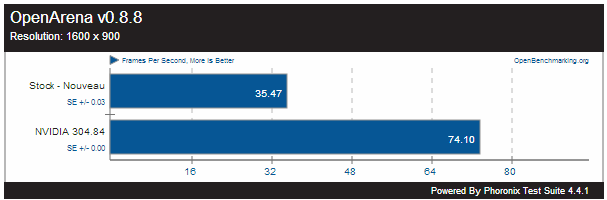
If that isn’t disappointing enough, the reason it doesn’t work are, in my opinion downright unforgiveable – The Nvidia driver has been replaced with the open-source equivalent effort, namely Nouveau.  I think I spelled that right. If not Google will conveniently correct me anyway when I go searching for ways to fix my new screen resolution of 640×480 pixels.

Forcing this upon people when the performance comparison are as follows (see below) is just plain stooopid.  Especially as you’ve already spent money on the nvidia card in the first place – why get all “open source” about driving it when nvidia provides the drivers for free?  Duhhhh.  It doesn’t help push the use of Steam either (the PC gaming platform for Linux) when the resultant performance is half what it could be.  Whilst I admire the open source communitys desire to do-it-yourself, the rest of the world ain’t that bovvered.

nouveau-vs-nvidia


A pet hate of mine is when people make a fantastic effort to post a solution to a problem using the GUI instead of the command line.  So if you use the most unpopular Ubuntu desktop of all time (Unity) then you’re in luck, but if you use one of the other desktops, then you’re out of luck.

Hopefully those of you using Ubuntu Studio like you should, will find this and correct your nvidia issues by installing the proprietary drivers using the command prompt.

sudo apt-add-repository ppa:xorg-edgers/ppa -y; sudo apt-get update; sudo apt-get upgrade -y; sudo apt-get install nvidia-316 nvidia-settings-316 -y


Did you like this?
Tip cyberfella with Cryptocurrency

Donate Bitcoin to cyberfella

Scan to Donate Bitcoin to cyberfella
Scan the QR code or copy the address below into your wallet to send some bitcoin:

Donate Bitcoin Cash to cyberfella

Scan to Donate Bitcoin Cash to cyberfella
Scan the QR code or copy the address below into your wallet to send bitcoin:

Donate Ethereum to cyberfella

Scan to Donate Ethereum to cyberfella
Scan the QR code or copy the address below into your wallet to send some Ether:

Donate Litecoin to cyberfella

Scan to Donate Litecoin to cyberfella
Scan the QR code or copy the address below into your wallet to send some Litecoin:

Donate Monero to cyberfella

Scan to Donate Monero to cyberfella
Scan the QR code or copy the address below into your wallet to send some Monero:

Donate ZCash to cyberfella

Scan to Donate ZCash to cyberfella
Scan the QR code or copy the address below into your wallet to send some ZCash:

Comparing two lists in Linux/UNIX

Deserves its own blog post this one.  A new favourite of mine, that seems more reliable than using diff or comm on account of its being easy to understand, and thus less likely to get wrong (matter of opinion).

grep -Fxv -f masterlist backupclients which would list any lines in a list of backupclients that were not found in the master list.

Note:  This lists any lines in the second file that are not matched in the first file (not the other way around).

-F pattern to match is a list of fixed strings

-x select only matches that match the whole line

-v reverses it, i.e. does not match the whole line

-f list of strings to (not) match are in this file

Result: filename output entire lines from the file specified that are not in the file specified by –f


It can be useful to convert all text to UPPERCASE and don’t forget to REMOVE EMPTY LINES in files.

Text can be converted to uppercase with tr ‘[:lower:] [:upper:]’ <infile >outfile

If you want to list only the lines that appear in two files, then comm -12 firstfile secondfile works well.

Did you like this?
Tip cyberfella with Cryptocurrency

Donate Bitcoin to cyberfella

Scan to Donate Bitcoin to cyberfella
Scan the QR code or copy the address below into your wallet to send some bitcoin:

Donate Bitcoin Cash to cyberfella

Scan to Donate Bitcoin Cash to cyberfella
Scan the QR code or copy the address below into your wallet to send bitcoin:

Donate Ethereum to cyberfella

Scan to Donate Ethereum to cyberfella
Scan the QR code or copy the address below into your wallet to send some Ether:

Donate Litecoin to cyberfella

Scan to Donate Litecoin to cyberfella
Scan the QR code or copy the address below into your wallet to send some Litecoin:

Donate Monero to cyberfella

Scan to Donate Monero to cyberfella
Scan the QR code or copy the address below into your wallet to send some Monero:

Donate ZCash to cyberfella

Scan to Donate ZCash to cyberfella
Scan the QR code or copy the address below into your wallet to send some ZCash:

Installing Cinelerra on Ubuntu Studio

Cinelerra is the best video editor available for Linux, so as a creative user of Ubuntu Studio (and one who never gets tired of free stuff), I thought I’d take the time to quickly blog on how to install Cinelerra on Ubuntu Studio.  It’s not available in the repositories (do what?) so you have to manually add the repository containing the packages for Ubuntu 12.10 and thus Ubuntu Studio 12.10

Pre-requisities

None that I’m aware of, but as a matter of routine, I always install the medibuntu repository for improved media functionality on Ubuntu.  Googling medibuntu will get you to those instructions, or for the lazy, they are…

http://www.medibuntu.org/repository.php

Set up shmmax kernel parameter...

sudo su -
sudo bash -c 'echo 0x7fffffff > /proc/sys/kernel/shmmax'
exit

Set an environment variable to allow Cinelerra to know where the audio stuff is...

export LADSPA_PATH=/usr/lib/ladspa
Installing Cinelerra

Add the repository (make sure any other package management software is shut, 
i.e. no synaptic package manager and no Ubuntu Software Centre running

sudo add-apt-repository ppa:cinelerra-ppa/ppa

Update the package managers with the names of the packages from the cinelerra repo...

sudo apt-get update

Install Cinelerra...

sudo apt-get install cinelerra-cv

Once installed, you'll find Cinelerra under the Video Production menu in Ubuntu Studio.
Despite this, you should run it from the command line with the command cinelerra
as there is a lot of useful output sent to the console.
Then off to youtube to watch some lessons on how to use it...


Did you like this?
Tip cyberfella with Cryptocurrency

Donate Bitcoin to cyberfella

Scan to Donate Bitcoin to cyberfella
Scan the QR code or copy the address below into your wallet to send some bitcoin:

Donate Bitcoin Cash to cyberfella

Scan to Donate Bitcoin Cash to cyberfella
Scan the QR code or copy the address below into your wallet to send bitcoin:

Donate Ethereum to cyberfella

Scan to Donate Ethereum to cyberfella
Scan the QR code or copy the address below into your wallet to send some Ether:

Donate Litecoin to cyberfella

Scan to Donate Litecoin to cyberfella
Scan the QR code or copy the address below into your wallet to send some Litecoin:

Donate Monero to cyberfella

Scan to Donate Monero to cyberfella
Scan the QR code or copy the address below into your wallet to send some Monero:

Donate ZCash to cyberfella

Scan to Donate ZCash to cyberfella
Scan the QR code or copy the address below into your wallet to send some ZCash: