
Configure VNX for NDMP

Filesystems on your VNX can be backed up using NDMP in emc Networker.  The Networker side of things is already concisely documented here… under the heading Adding a NAS filesystem to backup (using NDMP)

http://www.cyberfella.co.uk/2012/08/28/emc-networker/


In order for NDMP backups to work, some configuration of the VNX is necessary.

Create network interface for Backup

server_ifconfig server_2 -create -Device FSN01_NDMP_Backup -name Backup -protocol IP iii.iii.iii.iii sss.sss.sss.sss bbb.bbb.bbb.bbb mtu=1500 vlan=902

If you’re unsure of the correct broadcast address bbb.bbb.bbb.bbb, you can go through the motions of configuring an interface using Unisphere first, then use the pre-determined broadcast address in your command line before committing the change.  If you do commit the change, you’ll just need to delete the interface before recreating it using the CLI.  The advantage to using the CLI is that you can assign a name to your interface e.g. “Backup”.  Using unisphere, it’ll assign a name automatically (the IP address separated by hyphens) which is less meaningful.

Check for ndmp user and add user and reset password

/nas/sbin/server_user server_2 -list

/nas/sbin/server_user -add -md5 -passwd ndmp

/nas/sbin/server_user -passwd ndmp

********

Check port range

server_param server_2 -facility NDMP -info portRange

1024-65535


Check data streams value is consistent with parallelism value in Networker

server_param server_2 –facility NDMP –info concurrentDataStreams

server_param server_2 –facility NDMP –modify concurrentDataStreams –value 8


List full paths required to configure NDMP backup clients (emc VNX)

server_mount server_2

e.g. /root_vdm_2/CYBERFELLA_Test_FS


Did you like this?
Tip cyberfella with Cryptocurrency

Donate Bitcoin to cyberfella

Scan to Donate Bitcoin to cyberfella
Scan the QR code or copy the address below into your wallet to send some bitcoin:

Donate Bitcoin Cash to cyberfella

Scan to Donate Bitcoin Cash to cyberfella
Scan the QR code or copy the address below into your wallet to send bitcoin:

Donate Ethereum to cyberfella

Scan to Donate Ethereum to cyberfella
Scan the QR code or copy the address below into your wallet to send some Ether:

Donate Litecoin to cyberfella

Scan to Donate Litecoin to cyberfella
Scan the QR code or copy the address below into your wallet to send some Litecoin:

Donate Monero to cyberfella

Scan to Donate Monero to cyberfella
Scan the QR code or copy the address below into your wallet to send some Monero:

Donate ZCash to cyberfella

Scan to Donate ZCash to cyberfella
Scan the QR code or copy the address below into your wallet to send some ZCash:

nohup and disown your long running jobs

Ever started a job and thought “this is running on a bit longer than I expected”, then wondered whats going to happen when you go home and come back in to work tomorrow morning to find your remote session gone, which leaves you wondering “did that job complete?”.


Mmm, me too, which is where the nohup or disown commands come in.  nohup (no hangup) is a well known job control utility which will prevent a process from reacting to the hangup signal when a shell is disconnected.  Usually you’d preceed your actual command with it, e.g.

nohup rsync -auvc /Source/* /Destination/

but if your command is already running, you’re left wishing you’d nohup‘d it to start with – unless you’re running Solaris or AIX in which case the nohup command has a convenient -p switch to specify the process id (use ps -ef | grep rsync to obtain the PID of that long running data migration process, then nohup -p 9675 (or whatever the PID is of your running job).

If you’re not running Solaris or AIX, then pray you started the command in the bash shell (Linux default shell so more likely than not).  If you did, then you can

CTRL-Z

to pause the current job running in the foreground, then use the

jobs

command to determine its job number (most likely 1 if there’s no other sysadmins running backgrounded jobs), then background the process with

bg 1 

then finally

disown %1

to disconnect the process from the current shell.  Running

jobs 

again will show that your job is no longer in the list, but

ps -ef

will reveal that it is in fact still running.

Your shell can now be closed without the fear of your running job being killed with it.  Yay.

[paypal-donation]

Did you like this?
Tip cyberfella with Cryptocurrency

Donate Bitcoin to cyberfella

Scan to Donate Bitcoin to cyberfella
Scan the QR code or copy the address below into your wallet to send some bitcoin:

Donate Bitcoin Cash to cyberfella

Scan to Donate Bitcoin Cash to cyberfella
Scan the QR code or copy the address below into your wallet to send bitcoin:

Donate Ethereum to cyberfella

Scan to Donate Ethereum to cyberfella
Scan the QR code or copy the address below into your wallet to send some Ether:

Donate Litecoin to cyberfella

Scan to Donate Litecoin to cyberfella
Scan the QR code or copy the address below into your wallet to send some Litecoin:

Donate Monero to cyberfella

Scan to Donate Monero to cyberfella
Scan the QR code or copy the address below into your wallet to send some Monero:

Donate ZCash to cyberfella

Scan to Donate ZCash to cyberfella
Scan the QR code or copy the address below into your wallet to send some ZCash:

Quick surface plots using GNUPlot

GNUPlot is a free and very neat little graphing tool.  Upon installing it and running gnuplot you’ll be presented with a flashing command line prompt gnuplot>_ at which point you’ll be asking yourself “now what?”

gnuplot either plots data using plot or plots 3D surfaces using splot.

In this example, I’ll plot a surface plot (3D splot) of weekday (x), hour (y), number of jobs running (z).

gnuplot likes to be fed its data in text column format, separated with spaces or tabs but not commas e.g.

#day #hour #jobs
1 1 5
1 2 5
1 3 5
1 4 5
1 5 5
1 6 5
1 7 5
1 8 5
1 9 5
1 10 5

To create a surface plot of this data (my sample data used has values for all 24 hours in all 7 days), simply type

splot ‘path_to_data.dat’ to point to your text file containing your columns of numbers.

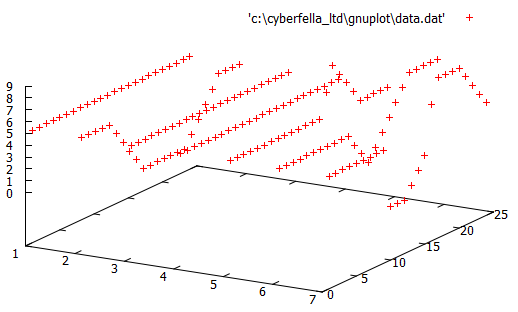
The results will be something like this.  Good, but not quite there yet.

gnuplot1


Some extra commands in the gnuplot command line window will improve the visual representation of the data, giving us the surface plot we’re ultimately after.

set dgrid3d

set grid

set view 50

set style data lines

set contour base

set hidden3d trianglepattern 7

set autoscale

Finally, use the command replot to update the graph.  The results are now much more usable, with contour lines on the base of the 3D graph to further highlight the “hot spots”, i.e. the hours of what day the most jobs are running (in my example).

gnuplot3


There’s much more fun to be had tweaking GNUPlot but I’ll leave that up to you and your imagination.  It’s worth finally mentioning  that the commands entered into gnuplot can be scripted and saved as a .plt file to compliment your .dat data file.  Then, to plot the surface maps again, you just need to load the script using…

load ‘path_to_script.plt’

Remember, the final line in your script should be

splot ‘path_to_data.dat’

so that the graph is actually generated, with all the options preceeding it.  e.g.

#My GNUPlot surface map script surf-map.plt

set dgrid3d

set grid

set view 50

set style data lines

set contour base

set hidden3d trianglepattern 7

set autoscale

splot ‘data.dat’

How you generate your actual data to be plotted is up to you.  A scheduled task/cron job which collects the data and appends it to the data.dat file is generally run as a separate shell script, e.g.

#!/bin/sh

#Insert newline into data.dat
HOURVAL=`date | awk {‘print $4’} | cut -d: -f1`
DAYVAL=`date | awk {‘print $1’}
RUNNINGGROUPSVAL=`ps -ef | grep savegrp | wc -1`

echo “${HOURVAL} ${DAYVAL} ${RUNNINGGROUPSVAL}” >> ~/data.dat

and the graphs generated at will using gnuplot.

Depending on the shapes generated by the surface map, it’s a nice touch that GNUPlot allows you to left-click on the graph and drag it around in 3 dimensions to achieve the best possible viewing angle, prior to saving the .png file, conveniently colouring the underside of the surface a different colour to the upper, visible side of the surface.

Did you like this?
Tip cyberfella with Cryptocurrency

Donate Bitcoin to cyberfella

Scan to Donate Bitcoin to cyberfella
Scan the QR code or copy the address below into your wallet to send some bitcoin:

Donate Bitcoin Cash to cyberfella

Scan to Donate Bitcoin Cash to cyberfella
Scan the QR code or copy the address below into your wallet to send bitcoin:

Donate Ethereum to cyberfella

Scan to Donate Ethereum to cyberfella
Scan the QR code or copy the address below into your wallet to send some Ether:

Donate Litecoin to cyberfella

Scan to Donate Litecoin to cyberfella
Scan the QR code or copy the address below into your wallet to send some Litecoin:

Donate Monero to cyberfella

Scan to Donate Monero to cyberfella
Scan the QR code or copy the address below into your wallet to send some Monero:

Donate ZCash to cyberfella

Scan to Donate ZCash to cyberfella
Scan the QR code or copy the address below into your wallet to send some ZCash:

Improve Laptop Battery Life

If you’re running ubuntu or xubuntu then you can improve battery life by running the following script.

Read the tweaks carefully as they prompt you for a y/n answer since answering yes to all will render your usb sockets useless when on battery.  You’ll get an icon in the tray that will allow setting of multiple performance modes, namely Conservative, On Demand, Powersave and Performance as well as a list of possible CPU frequencies.

To Install and Enable it…

cd && wget -O .laptop-mode.sh http://goo.gl/7SPJWP

chmod +x .laptop-mode.sh && ./.laptop-mode.sh

To Remove it..

cd && wget -O .laptop-mode-uninstall.sh http://goo.gl/IGVK8e

chmod +x .laptop-mode-uninstall.sh && ./.laptop-mode-uninstall.sh


Did you like this?
Tip cyberfella with Cryptocurrency

Donate Bitcoin to cyberfella

Scan to Donate Bitcoin to cyberfella
Scan the QR code or copy the address below into your wallet to send some bitcoin:

Donate Bitcoin Cash to cyberfella

Scan to Donate Bitcoin Cash to cyberfella
Scan the QR code or copy the address below into your wallet to send bitcoin:

Donate Ethereum to cyberfella

Scan to Donate Ethereum to cyberfella
Scan the QR code or copy the address below into your wallet to send some Ether:

Donate Litecoin to cyberfella

Scan to Donate Litecoin to cyberfella
Scan the QR code or copy the address below into your wallet to send some Litecoin:

Donate Monero to cyberfella

Scan to Donate Monero to cyberfella
Scan the QR code or copy the address below into your wallet to send some Monero:

Donate ZCash to cyberfella

Scan to Donate ZCash to cyberfella
Scan the QR code or copy the address below into your wallet to send some ZCash:

Linux Commands A-Z

I can’t take credit for this one –  that goes to Rahul Nag http://techosolutions.wordpress.com/2013/10/10/a-z-linux-commands/ but it’s just too useful to not have in my notes.  I’ve also added some extras and will continue to do so as I think of them/use them myself.

Command Description
alias Create an alias opposite of unalias
apropos Search manual for keyword
at Schedule a job to run in the future.
awk Find and Replace text within file(s) or show specific columns only

basename Opposite of dirname

break Exit from a loop
builtin Run a shell builtin
bunzip2 Decompress file from bzip2 format
bzip2 Compress file to bzip2 format
cal Display a calendar
case Conditionally perform a command
cat Concatenate files to standard output opposite of tac
cd Change Directory
cfdisk Partition table manipulator for Linux
chgrp Change group ownership
chmod Change access permissions
chown Change file owner and group
chroot Run a command with a different root directory
chvt Change the virtual Terminal
cksum Print CRC checksum and byte counts
clear Clear terminal screen
cmp Compare two files
comm Compare two sorted files line by line
command Run a command – ignoring shell functions
compress Compress file(s) to old Unix compress format
continue Resume the next iteration of a loop
convmv A perl script that converts filenames from one encoding to another
cp Copy one or more files to another location

cpio Copy files to and from archives

cron Daemon to execute scheduled commands at predefined time
crontab Schedule a command to run at a later time
csplit Split a file into context-determined pieces
cut Divide a file into several parts
date Display or change the date & time
dc Desk Calculator
dd Data Dump – Convert and copy a file
declare Declare variables and give them attributes
df Display free disk space
diff Display the differences between two files
diff3 Show differences among three files
dir Briefly list directory contents
dircolors Colour setup for `ls’
dirname Convert a full pathname to just a path
dirs Display list of remembered directories

df  Disk space free stats.

du Estimate file space usage
echo Display message on screen
ed A line-oriented text editor (edlin)
egrep Search file(s) for lines that match an extended expression
eject Eject CD-ROM
enable Enable and disable builtin shell commands
env Disp, set, or remove environment variables
eval Evaluate several commands/arguments
exec Execute a command (used with find)
exit Exit the shell
expand Convert tabs to spaces opposite of unexpand
export Set an environment variable
expr Evaluate expressions
factor Print prime factors
false Do nothing, unsuccessfully opposite of true
fdformat Low-level format a floppy disk
fdisk Partition table manipulator for Linux
fgrep Search file(s) for lines that match a fixed string
file Determine type of file
find Search for files that meet a desired criteria
fmt Reformat paragraph text
fold Wrap text to fit a specified width.
for Expand words, and execute commands
format Format disks or tapes
free Disp, s memory usage
fsck Filesystem consistency check and repair.
fstat List open files
function Define Function Macros
fuser Identify process using file
gawk Find and Replace text within file(s)
getopts Parse positional parameters
grep Search file(s) for lines that match a given pattern
groups Print group names a user is in
gunzip Decompress file(s) from GNU zip format
gzcat Show contents of compressed file(s)
gzip Compress file(s) to GNU zip format
hash Remember the full pathname of a name argument
head Output the first part of file(s)
history Command History
hostname Print or set system name
iconv Converts the encoding of characters from one code page encoding scheme to another.
id Print user and group id’s
if Conditionally perform a command
import Capture an X server screen and save the image to file
info Help info
install Copy files and set attributes
join Join lines on a common field
kill Stop a process from running
less Display output one screen at a time
let Perform arithmetic on shell variables
ln Make links between files
local Create variables
locate Find files
logname Print current login name
logout Exit a login shell
lpc Line printer control program
lpr Off line print
lprint Print a file
lprintd Abort a print job
lprintq List the print queue
lprm Remove jobs from the print queue
ls List information about file(s)
ll #ls -l List information about file(s)
lsof List open files
m4 Macro processor
makewhatis Rebuild whatis database
man Print manual pages
mkdir Create new folder(s)
mkfifo Make FIFOs (named pipes)
mknod Make block or character special files
more Display output one screen at a time
mount Mount a file system
mtools Manipulate MS-DOS files
mv Move or rename files or directories
netconfig Configure your network
nice Set the priority of a command or job
nl Number lines and write files
nohup Run a command immune to hangup
od View binary files
passwd Modify a user password
paste Merge lines of files
pathchk Check file name portability
popd Restore the previous value of the current directory opposite of pushd
pr Convert text files for printing
printcap Printer capability database
printenv Print environment variables
printf Format and print data
ps Process status
pushd Save and then change the current directory
pwd Print Working Directory
quota Display disk usage and limits
quotacheck Scan a file system for disk usage
quotactl Set disk quotas
pax Archive file(s)
ram ram disk device
rcp Copy files between two machines.
read read a line from standard input
readonly Mark variables/functions as readonly
remsync Synchronize remote files via email
return Exit a shell function
rm Remove (delete) files
rmdir Remove folder(s)
rpm RPM Package Manager (was RedHat Package Manager)
rsync Remote file copy (Synchronize file trees)
screen Terminal window manager
sdiff Merge two files interactively
sed Stream Editor used to perform search and replace
select Accept keyboard input
seq Print numeric sequences
set Manipulate shell variables and functions opposite of unset
shift Shift positional parameters
shopt Shell Options
shutdown Shutdown or restart linux
sleep Delay for a specified time
sort Sort text files often used with | uniq but can just sort -u
source Run commands from a file `.’
split Split a file into fixed-size pieces
strings print the strings of printable characters in (binary) files.
su Substitute user identity
sum Print a checksum for a file
symlink Make a new name for a file
sync Synchronize data on disk with memory
tac Print files out in reverse line order opposite of cat
tail Output the last part of files
tar Tape ARchiver
tee Redirect output to multiple files as well as to the screen -better than just using > or >>(tee -a)
test Evaluate a conditional expression
time Measure Program Resource Use
times User and system times

timex preceed a command to show how long it ran for upon completion

timidity Play midi files and set up software synth to play midi files with other commands.
touch Change file timestamps
top List processes running on the system
traceroute Trace Route to Host
trap Run a command when a signal is set(bourne)
tr Translate, squeeze, and/or delete characters change uppercase to lowercase
true Do nothing, successfully opposite of false
tsort Topological sort
tty Print filename of terminal on stdin
type Describe a command
ulimit Limit user resources
umask Users file creation mask
umount Unmount a filesystem
unalias Remove an alias opposite of alias
uname Print system information
unexpand Convert spaces to tabs opposite of expand
uniq Uniquify files (remove all duplicate lines) can also use sort -u to sort | uniq
units Convert units from one scale to another
unset Remove variable or function names opposite of set
unshar Unpack shell archive scripts
until Execute commands (until error)
useradd Create new user account
usermod Modify user account
users List users currently logged in
uuencode Encode a binary file into 7-bit ASCII characters
uudecode Decode a file created by uuencode
v Verbosely list directory contents (`ls -l -b’)
vdir Verbosely list directory contents (`ls -l -b’)

vi  The greatest shell text editor ever

vim The greatest shell text editor ever – improved

watch Execute/display a program periodically
whatis List manual pages by name
wc Print byte, word, and line counts of a file
whereis Report all known instances of a command
which Locate a program file in the user’s path.
while Execute commands
who Print all usernames currently logged in
whoami Print the current user id and name (`id -un’)
xargs Execute utility, passing constructed argument list(s)
yes Print a string until interrupted
zcat Show contents of compressed file(s)
zip Compress and archive file(s) to zip format

Did you like this?
Tip cyberfella with Cryptocurrency

Donate Bitcoin to cyberfella

Scan to Donate Bitcoin to cyberfella
Scan the QR code or copy the address below into your wallet to send some bitcoin:

Donate Bitcoin Cash to cyberfella

Scan to Donate Bitcoin Cash to cyberfella
Scan the QR code or copy the address below into your wallet to send bitcoin:

Donate Ethereum to cyberfella

Scan to Donate Ethereum to cyberfella
Scan the QR code or copy the address below into your wallet to send some Ether:

Donate Litecoin to cyberfella

Scan to Donate Litecoin to cyberfella
Scan the QR code or copy the address below into your wallet to send some Litecoin:

Donate Monero to cyberfella

Scan to Donate Monero to cyberfella
Scan the QR code or copy the address below into your wallet to send some Monero:

Donate ZCash to cyberfella

Scan to Donate ZCash to cyberfella
Scan the QR code or copy the address below into your wallet to send some ZCash:

MAC address on Solaris

If you need to know the MAC address of a Solaris host, running ifconfig -a as an unprivileged user does not display the MAC Address (or Hardware Address) field.

You can determine the Solaris MAC address another way.

/usr/bin/netstat -pn |grep SP


Did you like this?
Tip cyberfella with Cryptocurrency

Donate Bitcoin to cyberfella

Scan to Donate Bitcoin to cyberfella
Scan the QR code or copy the address below into your wallet to send some bitcoin:

Donate Bitcoin Cash to cyberfella

Scan to Donate Bitcoin Cash to cyberfella
Scan the QR code or copy the address below into your wallet to send bitcoin:

Donate Ethereum to cyberfella

Scan to Donate Ethereum to cyberfella
Scan the QR code or copy the address below into your wallet to send some Ether:

Donate Litecoin to cyberfella

Scan to Donate Litecoin to cyberfella
Scan the QR code or copy the address below into your wallet to send some Litecoin:

Donate Monero to cyberfella

Scan to Donate Monero to cyberfella
Scan the QR code or copy the address below into your wallet to send some Monero:

Donate ZCash to cyberfella

Scan to Donate ZCash to cyberfella
Scan the QR code or copy the address below into your wallet to send some ZCash:

Using Ubuntu One on Linux Mint

If you want to use one of Linux Mint’s various distributions (XFCE would be my choice), but feel locked into Ubuntu due to it’s free 5GB of Ubuntu One cloud storage, you can install Ubuntu One client on Linux Mint too, taking advantage of both.

sudo add-apt-repository ppa:noobslab/apps
sudo apt-get update
sudo apt-get install ubuntuone-client ubuntuone-control-panel ubuntuone-client-proxy ubuntuone-control-panel-qt

Finally, just configure Ubuntu One client with your account username and password just as you would in Ubuntu/Kubuntu/Xubuntu/Lubuntu/Ubuntu Studio..

Did you like this?
Tip cyberfella with Cryptocurrency

Donate Bitcoin to cyberfella

Scan to Donate Bitcoin to cyberfella
Scan the QR code or copy the address below into your wallet to send some bitcoin:

Donate Bitcoin Cash to cyberfella

Scan to Donate Bitcoin Cash to cyberfella
Scan the QR code or copy the address below into your wallet to send bitcoin:

Donate Ethereum to cyberfella

Scan to Donate Ethereum to cyberfella
Scan the QR code or copy the address below into your wallet to send some Ether:

Donate Litecoin to cyberfella

Scan to Donate Litecoin to cyberfella
Scan the QR code or copy the address below into your wallet to send some Litecoin:

Donate Monero to cyberfella

Scan to Donate Monero to cyberfella
Scan the QR code or copy the address below into your wallet to send some Monero:

Donate ZCash to cyberfella

Scan to Donate ZCash to cyberfella
Scan the QR code or copy the address below into your wallet to send some ZCash:

Windows Server 2012 VM won’t boot

Having reluctantly agreed to spending £260 of company funds on a Microsoft Action Pack subscription, I thought I might as well familiarise myself with Windows Server 2012 and Windows 8.  What more convenient way than to use Oracle Virtualbox on my Ubuntu powered Dell XPS 13?  sudo apt-get install virtualbox took care of installing that.

I created a new VM and pointed the virtual optical device at the Windows 8 .img file (that I had to rename to .iso) and it booted and installed fine, and was ready for use in literally a few moments which I found impressive (I shall delve deeper into the OS later and try to appreciate its merits rather than look to criticize its faults)

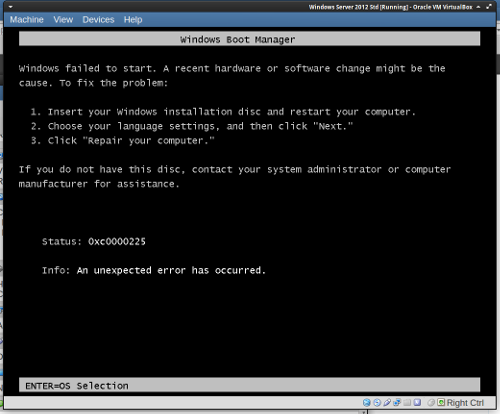
Windows 2012 Server however did not, throwing its toys in the air at the first opportunity with a cryptic oxc0000225 error.

WindowsServer2012VMcrash


This is easily fixed by powering the VM off, and ticking the Enable IO APIC setting.

WindowsServer2012VMboot


Once this is enabled, the VM can boot fine and you’re soon prompted to “Install now”.  The installation wizard is almost identical to that of Windows 8, and completes just as rapidly.

WindowsServer2012VM

Did you like this?
Tip cyberfella with Cryptocurrency

Donate Bitcoin to cyberfella

Scan to Donate Bitcoin to cyberfella
Scan the QR code or copy the address below into your wallet to send some bitcoin:

Donate Bitcoin Cash to cyberfella

Scan to Donate Bitcoin Cash to cyberfella
Scan the QR code or copy the address below into your wallet to send bitcoin:

Donate Ethereum to cyberfella

Scan to Donate Ethereum to cyberfella
Scan the QR code or copy the address below into your wallet to send some Ether:

Donate Litecoin to cyberfella

Scan to Donate Litecoin to cyberfella
Scan the QR code or copy the address below into your wallet to send some Litecoin:

Donate Monero to cyberfella

Scan to Donate Monero to cyberfella
Scan the QR code or copy the address below into your wallet to send some Monero:

Donate ZCash to cyberfella

Scan to Donate ZCash to cyberfella
Scan the QR code or copy the address below into your wallet to send some ZCash:

Fun Linux Commands

Although it has a reputation for having a steep initial learning curve, in fact Linux / UNIX is great fun to learn and use, and obviously much more is possible with its command line due to the many decades of constant evolution and improvement that have been put into it by the thousands of active developers in the open source community.

This makes it very rewarding to use.

Here are some commands that are purely about fun and serve little to no purpose in the serious workplace.  They can each be installed using apt-get install or yum install depending on whether you’re using a debian or redhat based distribution.

Enjoy.

moo – displays a cow

sl – lists files in a directory like ls but if you get the syntax wrong, a train will drive across your screen

figlet – useful to turn text into big chunky letters

cowsay (and xcowsay) -displays a cow that says whatever you tell it to say as text (or graphic)

oneko – displays a little ASCII cat that chases your mouse around the screen

rev – reverses text

fortune – displays random quotes/nonsense.  Can be used in conjunction with cowsay e.g. fortune -s | cowsay


Did you like this?
Tip cyberfella with Cryptocurrency

Donate Bitcoin to cyberfella

Scan to Donate Bitcoin to cyberfella
Scan the QR code or copy the address below into your wallet to send some bitcoin:

Donate Bitcoin Cash to cyberfella

Scan to Donate Bitcoin Cash to cyberfella
Scan the QR code or copy the address below into your wallet to send bitcoin:

Donate Ethereum to cyberfella

Scan to Donate Ethereum to cyberfella
Scan the QR code or copy the address below into your wallet to send some Ether:

Donate Litecoin to cyberfella

Scan to Donate Litecoin to cyberfella
Scan the QR code or copy the address below into your wallet to send some Litecoin:

Donate Monero to cyberfella

Scan to Donate Monero to cyberfella
Scan the QR code or copy the address below into your wallet to send some Monero:

Donate ZCash to cyberfella

Scan to Donate ZCash to cyberfella
Scan the QR code or copy the address below into your wallet to send some ZCash:

Shell Scripting “test”

Here’s a quick reference guide to the tests performed on a variable as part of a shell script.

test expr or [ expr ]


Example (if $var is not set to any value)

if [[ -z $var ]]; then

echo “variable has no value”

fi


-n file                true if variable has a value set

-z file                true if variable is empty

-L                      true if file is symbolic link

file1 -nt file2      true if file1 newer than file2

file1 -ot file2      true if file1 older than file2

file1 -ef file2      true if file1 and file2 are same device and inode number.

-e file                true if file exists (NOT ON HPUX use f instead)

-x file                true if file is executable

-r file                true if file is readable

-w file               true if file is writable

-f file                 true if file is a regular file

-d directory       true if directory is a directory

-c file                true if character special file

-b file                true if block special file

-p file                true if a named pipe

-u file                true if set UID bit is set

-g file                true if set GID bit is set

-k file                true if sticky bit is set

-s file                true if filesize > 0

Did you like this?
Tip cyberfella with Cryptocurrency

Donate Bitcoin to cyberfella

Scan to Donate Bitcoin to cyberfella
Scan the QR code or copy the address below into your wallet to send some bitcoin:

Donate Bitcoin Cash to cyberfella

Scan to Donate Bitcoin Cash to cyberfella
Scan the QR code or copy the address below into your wallet to send bitcoin:

Donate Ethereum to cyberfella

Scan to Donate Ethereum to cyberfella
Scan the QR code or copy the address below into your wallet to send some Ether:

Donate Litecoin to cyberfella

Scan to Donate Litecoin to cyberfella
Scan the QR code or copy the address below into your wallet to send some Litecoin:

Donate Monero to cyberfella

Scan to Donate Monero to cyberfella
Scan the QR code or copy the address below into your wallet to send some Monero:

Donate ZCash to cyberfella

Scan to Donate ZCash to cyberfella
Scan the QR code or copy the address below into your wallet to send some ZCash: