
If df -h reveals that one of your linux filesystems is full, you’ll be asking yourself whats filled it.
find /myfs -mtime +1 -type f -size +1000000 -exec ls -al {} \;
Essential commands for supporting RedHat Linux
If df -h reveals that one of your linux filesystems is full, you’ll be asking yourself whats filled it.
find /myfs -mtime +1 -type f -size +1000000 -exec ls -al {} \;
If you have a Red Hat Enterprise Linux server with the emc Powerpath driver installed, and find it won’t boot due to the LVM subsystem not being able to find the volume group, it may be because the Powerpath driver hasn’t finished loading and scanning for block storage before the LVM subsystem has started. There are two ways around it, one if to set the dump and fsck order numbers in /etc/fstab to 0 and 0 respectively, but that means the filesystem will never be checked for errors during boot time. The other is the correct way around it, as recommended by emc in the Powerpath guide, and involves using the _netdev option in the /etc/fstab file so that the OS know to give it some time. It works too!
Use the _netdev option in /etc/fstab instead of defaults
Use a higher number than 1 for the fsck check order too.
The emc Powerpath guide states…
For RHEL 5, PowerPath devices should be mounted with the _netdev
option instead of the defaults option in the /etc/fstab file. This will
ensure that fsck is run later in the boot sequence.
Ever started a job and thought “this is running on a bit longer than I expected”, then wondered whats going to happen when you go home and come back in to work tomorrow morning to find your remote session gone, which leaves you wondering “did that job complete?”.
Mmm, me too, which is where the nohup or disown commands come in. nohup (no hangup) is a well known job control utility which will prevent a process from reacting to the hangup signal when a shell is disconnected. Usually you’d preceed your actual command with it, e.g.
nohup rsync -auvc /Source/* /Destination/
but if your command is already running, you’re left wishing you’d nohup‘d it to start with – unless you’re running Solaris or AIX in which case the nohup command has a convenient -p switch to specify the process id (use ps -ef | grep rsync to obtain the PID of that long running data migration process, then nohup -p 9675 (or whatever the PID is of your running job).
If you’re not running Solaris or AIX, then pray you started the command in the bash shell (Linux default shell so more likely than not). If you did, then you can
CTRL-Z
to pause the current job running in the foreground, then use the
jobs
command to determine its job number (most likely 1 if there’s no other sysadmins running backgrounded jobs), then background the process with
bg 1
then finally
disown %1
to disconnect the process from the current shell. Running
jobs
again will show that your job is no longer in the list, but
ps -ef
will reveal that it is in fact still running.
Your shell can now be closed without the fear of your running job being killed with it. Yay.
[paypal-donation]
GNUPlot is a free and very neat little graphing tool. Upon installing it and running gnuplot you’ll be presented with a flashing command line prompt gnuplot>_ at which point you’ll be asking yourself “now what?”
gnuplot either plots data using plot or plots 3D surfaces using splot.
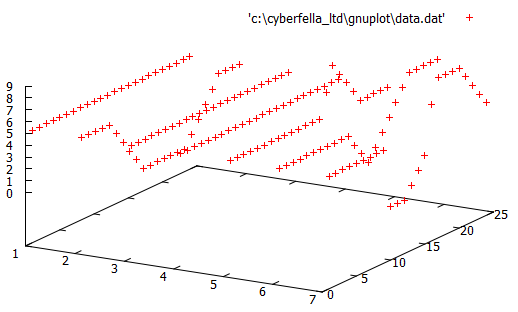
In this example, I’ll plot a surface plot (3D splot) of weekday (x), hour (y), number of jobs running (z).
gnuplot likes to be fed its data in text column format, separated with spaces or tabs but not commas e.g.
#day #hour #jobs
1 1 5
1 2 5
1 3 5
1 4 5
1 5 5
1 6 5
1 7 5
1 8 5
1 9 5
1 10 5
To create a surface plot of this data (my sample data used has values for all 24 hours in all 7 days), simply type
splot ‘path_to_data.dat’ to point to your text file containing your columns of numbers.
The results will be something like this. Good, but not quite there yet.
Some extra commands in the gnuplot command line window will improve the visual representation of the data, giving us the surface plot we’re ultimately after.
set dgrid3d
set grid
set view 50
set style data lines
set contour base
set hidden3d trianglepattern 7
set autoscale
Finally, use the command replot to update the graph. The results are now much more usable, with contour lines on the base of the 3D graph to further highlight the “hot spots”, i.e. the hours of what day the most jobs are running (in my example).
There’s much more fun to be had tweaking GNUPlot but I’ll leave that up to you and your imagination. It’s worth finally mentioning that the commands entered into gnuplot can be scripted and saved as a .plt file to compliment your .dat data file. Then, to plot the surface maps again, you just need to load the script using…
load ‘path_to_script.plt’
Remember, the final line in your script should be
splot ‘path_to_data.dat’
so that the graph is actually generated, with all the options preceeding it. e.g.
#My GNUPlot surface map script surf-map.plt
set dgrid3d
set grid
set view 50
set style data lines
set contour base
set hidden3d trianglepattern 7
set autoscale
splot ‘data.dat’
How you generate your actual data to be plotted is up to you. A scheduled task/cron job which collects the data and appends it to the data.dat file is generally run as a separate shell script, e.g.
#!/bin/sh
#Insert newline into data.dat
HOURVAL=`date | awk {‘print $4’} | cut -d: -f1`
DAYVAL=`date | awk {‘print $1’}
RUNNINGGROUPSVAL=`ps -ef | grep savegrp | wc -1`echo “${HOURVAL} ${DAYVAL} ${RUNNINGGROUPSVAL}” >> ~/data.dat
and the graphs generated at will using gnuplot.
Depending on the shapes generated by the surface map, it’s a nice touch that GNUPlot allows you to left-click on the graph and drag it around in 3 dimensions to achieve the best possible viewing angle, prior to saving the .png file, conveniently colouring the underside of the surface a different colour to the upper, visible side of the surface.
I can’t take credit for this one – that goes to Rahul Nag http://techosolutions.wordpress.com/2013/10/10/a-z-linux-commands/ but it’s just too useful to not have in my notes. I’ve also added some extras and will continue to do so as I think of them/use them myself.
Command Description
alias Create an alias opposite of unalias
apropos Search manual for keyword
at Schedule a job to run in the future.
awk Find and Replace text within file(s) or show specific columns only
basename Opposite of dirname
break Exit from a loop
builtin Run a shell builtin
bunzip2 Decompress file from bzip2 format
bzip2 Compress file to bzip2 format
cal Display a calendar
case Conditionally perform a command
cat Concatenate files to standard output opposite of tac
cd Change Directory
cfdisk Partition table manipulator for Linux
chgrp Change group ownership
chmod Change access permissions
chown Change file owner and group
chroot Run a command with a different root directory
chvt Change the virtual Terminal
cksum Print CRC checksum and byte counts
clear Clear terminal screen
cmp Compare two files
comm Compare two sorted files line by line
command Run a command – ignoring shell functions
compress Compress file(s) to old Unix compress format
continue Resume the next iteration of a loop
convmv A perl script that converts filenames from one encoding to another
cp Copy one or more files to another location
cpio Copy files to and from archives
cron Daemon to execute scheduled commands at predefined time
crontab Schedule a command to run at a later time
csplit Split a file into context-determined pieces
cut Divide a file into several parts
date Display or change the date & time
dc Desk Calculator
dd Data Dump – Convert and copy a file
declare Declare variables and give them attributes
df Display free disk space
diff Display the differences between two files
diff3 Show differences among three files
dir Briefly list directory contents
dircolors Colour setup for `ls’
dirname Convert a full pathname to just a path
dirs Display list of remembered directories
df Disk space free stats.
du Estimate file space usage
echo Display message on screen
ed A line-oriented text editor (edlin)
egrep Search file(s) for lines that match an extended expression
eject Eject CD-ROM
enable Enable and disable builtin shell commands
env Disp, set, or remove environment variables
eval Evaluate several commands/arguments
exec Execute a command (used with find)
exit Exit the shell
expand Convert tabs to spaces opposite of unexpand
export Set an environment variable
expr Evaluate expressions
factor Print prime factors
false Do nothing, unsuccessfully opposite of true
fdformat Low-level format a floppy disk
fdisk Partition table manipulator for Linux
fgrep Search file(s) for lines that match a fixed string
file Determine type of file
find Search for files that meet a desired criteria
fmt Reformat paragraph text
fold Wrap text to fit a specified width.
for Expand words, and execute commands
format Format disks or tapes
free Disp, s memory usage
fsck Filesystem consistency check and repair.
fstat List open files
function Define Function Macros
fuser Identify process using file
gawk Find and Replace text within file(s)
getopts Parse positional parameters
grep Search file(s) for lines that match a given pattern
groups Print group names a user is in
gunzip Decompress file(s) from GNU zip format
gzcat Show contents of compressed file(s)
gzip Compress file(s) to GNU zip format
hash Remember the full pathname of a name argument
head Output the first part of file(s)
history Command History
hostname Print or set system name
iconv Converts the encoding of characters from one code page encoding scheme to another.
id Print user and group id’s
if Conditionally perform a command
import Capture an X server screen and save the image to file
info Help info
install Copy files and set attributes
join Join lines on a common field
kill Stop a process from running
less Display output one screen at a time
let Perform arithmetic on shell variables
ln Make links between files
local Create variables
locate Find files
logname Print current login name
logout Exit a login shell
lpc Line printer control program
lpr Off line print
lprint Print a file
lprintd Abort a print job
lprintq List the print queue
lprm Remove jobs from the print queue
ls List information about file(s)
ll #ls -l List information about file(s)
lsof List open files
m4 Macro processor
makewhatis Rebuild whatis database
man Print manual pages
mkdir Create new folder(s)
mkfifo Make FIFOs (named pipes)
mknod Make block or character special files
more Display output one screen at a time
mount Mount a file system
mtools Manipulate MS-DOS files
mv Move or rename files or directories
netconfig Configure your network
nice Set the priority of a command or job
nl Number lines and write files
nohup Run a command immune to hangup
od View binary files
passwd Modify a user password
paste Merge lines of files
pathchk Check file name portability
popd Restore the previous value of the current directory opposite of pushd
pr Convert text files for printing
printcap Printer capability database
printenv Print environment variables
printf Format and print data
ps Process status
pushd Save and then change the current directory
pwd Print Working Directory
quota Display disk usage and limits
quotacheck Scan a file system for disk usage
quotactl Set disk quotas
pax Archive file(s)
ram ram disk device
rcp Copy files between two machines.
read read a line from standard input
readonly Mark variables/functions as readonly
remsync Synchronize remote files via email
return Exit a shell function
rm Remove (delete) files
rmdir Remove folder(s)
rpm RPM Package Manager (was RedHat Package Manager)
rsync Remote file copy (Synchronize file trees)
screen Terminal window manager
sdiff Merge two files interactively
sed Stream Editor used to perform search and replace
select Accept keyboard input
seq Print numeric sequences
set Manipulate shell variables and functions opposite of unset
shift Shift positional parameters
shopt Shell Options
shutdown Shutdown or restart linux
sleep Delay for a specified time
sort Sort text files often used with | uniq but can just sort -u
source Run commands from a file `.’
split Split a file into fixed-size pieces
strings print the strings of printable characters in (binary) files.
su Substitute user identity
sum Print a checksum for a file
symlink Make a new name for a file
sync Synchronize data on disk with memory
tac Print files out in reverse line order opposite of cat
tail Output the last part of files
tar Tape ARchiver
tee Redirect output to multiple files as well as to the screen -better than just using > or >>(tee -a)
test Evaluate a conditional expression
time Measure Program Resource Use
times User and system times
timex preceed a command to show how long it ran for upon completion
timidity Play midi files and set up software synth to play midi files with other commands.
touch Change file timestamps
top List processes running on the system
traceroute Trace Route to Host
trap Run a command when a signal is set(bourne)
tr Translate, squeeze, and/or delete characters change uppercase to lowercase
true Do nothing, successfully opposite of false
tsort Topological sort
tty Print filename of terminal on stdin
type Describe a command
ulimit Limit user resources
umask Users file creation mask
umount Unmount a filesystem
unalias Remove an alias opposite of alias
uname Print system information
unexpand Convert spaces to tabs opposite of expand
uniq Uniquify files (remove all duplicate lines) can also use sort -u to sort | uniq
units Convert units from one scale to another
unset Remove variable or function names opposite of set
unshar Unpack shell archive scripts
until Execute commands (until error)
useradd Create new user account
usermod Modify user account
users List users currently logged in
uuencode Encode a binary file into 7-bit ASCII characters
uudecode Decode a file created by uuencode
v Verbosely list directory contents (`ls -l -b’)
vdir Verbosely list directory contents (`ls -l -b’)
vi The greatest shell text editor ever
vim The greatest shell text editor ever – improved
watch Execute/display a program periodically
whatis List manual pages by name
wc Print byte, word, and line counts of a file
whereis Report all known instances of a command
which Locate a program file in the user’s path.
while Execute commands
who Print all usernames currently logged in
whoami Print the current user id and name (`id -un’)
xargs Execute utility, passing constructed argument list(s)
yes Print a string until interrupted
zcat Show contents of compressed file(s)
zip Compress and archive file(s) to zip format
Here’s a quick reference guide to the tests performed on a variable as part of a shell script.
test expr or [ expr ]
Example (if $var is not set to any value)
if [[ -z $var ]]; then
echo “variable has no value”
fi
-n file true if variable has a value set
-z file true if variable is empty
-L true if file is symbolic link
file1 -nt file2 true if file1 newer than file2
file1 -ot file2 true if file1 older than file2
file1 -ef file2 true if file1 and file2 are same device and inode number.
-e file true if file exists (NOT ON HPUX – use f instead)
-x file true if file is executable
-r file true if file is readable
-w file true if file is writable
-f file true if file is a regular file
-d directory true if directory is a directory
-c file true if character special file
-b file true if block special file
-p file true if a named pipe
-u file true if set UID bit is set
-g file true if set GID bit is set
-k file true if sticky bit is set
-s file true if filesize > 0
A nice little script written around the rsync command used to successfully migrate large amounts of data between NFS filesystems, avoiding .snapshot folders in the process. A simple script in essence but a nice reference example nonetheless on the use of variables, functions, if statements, case statements, patterns and some useful commands, e.g. using sed to remove whitespace at the front of a variable returned by wc.
A simple but proper shell script that can almost certainly be built/improved upon using tee to write std output to a log file as well as the screen for instance, and using find to subsequently count the number of files afterwards because df is unlikely match to the nearest megabyte across different filesystems served by different NAS’s for comparison/verification.
#!/usr/bin/bash
#Generic script for migrating file systems.
#Variables Section
SOURCE=$1
DEST=$2
#Functions section
function migratenonhiddenfolders(){
echo “Re-Synchronising non-hidden top level folders only…”
#Synchronise the data
ls -l $SOURCE | grep ^d | awk {‘print $9’} | while read EACHDIR; do
echo “Syncing ${SOURCE}/${EACHDIR} with ${DEST}/${EACHDIR}”
timex /usr/local/bin/rsync -au ${SOURCE}/${EACHDIR}/* ${DEST}/${EACHDIR}
done
}
#Code section
if [[ -z $1 ]];then
echo “No Source or Destination specified”
echo “Usage: migrate.sh /<source_fs> /<destination_fs>”
exit
fi
if [[ -z $2 ]];then
echo “No Destination specified”
echo “Usage: migrate.sh /source_fs> /<destination_fs>”
exit
fi
#Source and Destination filesystems have been specified
echo “Source filesystem: $SOURCE”
FOLDERCOUNT=`ls -l $SOURCE | grep ^d | wc -l | sed -e ‘s/^[ \t]*//’`
echo “The $FOLDERCOUNT source folders are…”
ls -l $SOURCE | grep ^d | awk {‘print $9’}
echo
echo “Destination filesystem: $DEST”
echo
echo -n “Please confirm the details are correct [Yes/No] > “
read CONFIRM
case $CONFIRM in
[Yy] | [Yy][Ee][Ss])
migratenonhiddenfolders
;;
*)
echo
echo “User aborted.”
exit
;;
esac
#Clean exit
exit
Improved version (with logging) shown below.
#!/usr/bin/bash
#Generic script for migrating file systems.
#Variables Section
SOURCE=$1
DEST=$2
#Functions section
function migratenonhiddenfolders(){
echo “Migrating ${SOURCE} to ${DEST} at `date`” >> ~/migration.log
echo “Re-Synchronising non-hidden top level folders only…” | tee -a ~/migration.log
#Synchronise the data
ls -l $SOURCE | grep ^d | awk {‘print $9’} | while read EACHDIR; do
echo “Syncing ${SOURCE}/${EACHDIR} with ${DEST}/${EACHDIR} at `date`” | tee -a ~/${DEST}_${EACHDIR}.log ~/${DEST}.log ~/migration.log
timex /usr/local/bin/rsync -au ${SOURCE}/${EACHDIR}/* ${DEST}/${EACHDIR} | tee -a ~/${DEST}_${EACHDIR}.log ~/${DEST}.log ~/migration.log
echo “Completed migrating to ${DEST}/${EACHDIR} at `date`” | tee -a ~/${DEST}_${EACHDIR}.log ~/${DEST}.log ~/migration.log
done
}
#Code section
if [[ -z $1 ]];then
echo “No Source or Destination specified”
echo “Usage: migrate.sh /<source_fs> /<destination_fs>”
exit
fi
if [[ -z $2 ]];then
echo “No Destination specified”
echo “Usage: migrate.sh /source_fs> /<destination_fs>”
exit
fi
#Source and Destination filesystems have been specified
echo “Source filesystem: $SOURCE”
FOLDERCOUNT=`ls -l $SOURCE | grep ^d | wc -l | sed -e ‘s/^[ \t]*//’`
echo “The $FOLDERCOUNT source folders are…”
ls -l $SOURCE | grep ^d | awk {‘print $9’}
echo
echo “Destination filesystem: $DEST”
echo
echo -n “Please confirm the details are correct [Yes/No] > “
read CONFIRM
case $CONFIRM in
[Yy] | [Yy][Ee][Ss])
migratenonhiddenfolders
;;
*)
echo
echo “User aborted.”
exit
;;
esac
#Clean exit
exit
###########################################################
##
## Data Migration script by M.D.Bradley, Cyberfella Ltd
## http://www.cyberfella.co.uk/2013/08/09/data-migration/
##
## Version 1.0 9th August 2013
###########################################################
Keep SAN switch status info in one place and analyse it daily. This can be useful for SAN reporting purposes.
It’s a little script I knocked together that looks “bigger” than it actually is (I could improve it further by introducing another loop to eliminate a lot of repetitive code).
It has the pre-requisite of copying ssh keys to each switch to allow a remote nasadmin user to authenticate without passing a password across the network prior to running the show interface brief command and passing the output back to the remote script over an encrypted connection.
Don’t put passwords in your scripts, especially for user accounts that have superuser access to important stuff like your fc switches. Hacking (in the context of Cracking) is an opportunist crime that exploits bad practices like this to gain entry to the parts of your infrastructure that a denial of service attack would cause the most damage.
#!/bin/sh
#Variables
MYDIR=/local/home/nasadmin/switches/
# Substitue names of fc-switches below…
FC_SWITCHES=( fc-switch-1 fc-switch-2 fc-switch-3 fc-switch-4 )#Code Section
#Obtain detail from each switch
#(requires ssh keys to be set up on each switch to enable passwordless ssh authentication of admin user on central node)
for EACHFCSWITCH in ${FC_SWITCHES[@]};
# begin first loop
do
/usr/bin/ssh -q admin@${EACHFCSWITCH} “show interface brief” | tee ${MYDIR}/ShowInterfaceBrief_${EACHFCSWITCH}
done#All Show Interface Brief information collected.
#Process information to summarize it in /local/home/nasadmin/switches/SwitchSummary
rm ${MYDIR}/SwitchSummary} 2>&1
cd ${MYDIR}
ls -1 ${MYDIR} | grep ^Sh | while read EACHSWITCH
do
VAR_in=`grep “in” ${EACHSWITCH} | wc -l`
VAR_fc=`grep “fc” ${EACHSWITCH} | wc -l`
VAR_up=`grep “up” ${EACHSWITCH} | wc -l`
VAR_notConnected=`grep “notConnected” ${EACHSWITCH} | wc -l`
VAR_down=`grep “down” ${EACHSWITCH} | wc -l`
VAR_trunking=`grep “trunking” ${EACHSWITCH} | wc -l`
VAR_sfpAbsent=`grep “sfpAbsent” ${EACHSWITCH} | wc -l`
VAR_errDisabled=`grep “errDisabled” ${EACHSWITCH} | wc -l`echo ${EACHSWITCH} >> ${MYDIR}/SwitchSummary
echo “in ${VAR_in}” >> ${MYDIR}/SwitchSummary
echo “fc ${VAR_fc}” >> ${MYDIR}/SwitchSummary
echo “up ${VAR_up}” >> ${MYDIR}/SwitchSummary
echo “notConnected ${VAR_notConnected}” >> ${MYDIR}/SwitchSummary
echo “down ${VAR_down}” >> ${MYDIR}/SwitchSummary
echo “trunking ${VAR_trunking}” >> ${MYDIR}/SwitchSummary
echo “sfpAbsent ${VAR_sfpAbsent}” >> ${MYDIR}/SwitchSummary
echo “errDisabled ${VAR_errDisabled}” >> ${MYDIR}/SwitchSummary
echo ” ” >> ${MYDIR}/SwitchSummary
done#Process information to summarize it in /local/home/nasadmin/switches/SwitchSummary.csv
echo -n “Switch,” > ${MYDIR}/SwitchSummary.csv
ls -1 ${MYDIR} | grep Show | cut -d_ -f2 | while read EACHSWITCH
do
echo -n “${EACHSWITCH},” >> ${MYDIR}/SwitchSummary.csv
done
echo “” >> ${MYDIR}/SwitchSummary.csvecho -n “in,” >> ${MYDIR}/SwitchSummary.csv
ls -1 ${MYDIR} | grep Show | while read EACHSWITCH
do
VAR_in=`grep “in” ${EACHSWITCH} | wc -l`
echo -n “${VAR_in},” >> ${MYDIR}/SwitchSummary.csv
done
echo “” >> ${MYDIR}/SwitchSummary.csvecho -n “fc,” >> ${MYDIR}/SwitchSummary.csv
ls -1 ${MYDIR} | grep Show | while read EACHSWITCH
do
VAR_fc=`grep “fc” ${EACHSWITCH} | wc -l`
echo -n “${VAR_fc},” >> ${MYDIR}/SwitchSummary.csv
done
echo “” >> ${MYDIR}/SwitchSummary.csvecho -n “notConnected,” >> ${MYDIR}/SwitchSummary.csv
ls -1 ${MYDIR} | grep Show | while read EACHSWITCH
do
VAR_notConnected=`grep “notConnected” ${EACHSWITCH} | wc -l`
echo -n “${VAR_notConnected},” >> ${MYDIR}/SwitchSummary.csv
done
echo “” >> ${MYDIR}/SwitchSummary.csvecho -n “down,” >> ${MYDIR}/SwitchSummary.csv
ls -1 ${MYDIR} | grep Show | while read EACHSWITCH
do
VAR_down=`grep “down” ${EACHSWITCH} | wc -l`
echo -n “${VAR_down},” >> ${MYDIR}/SwitchSummary.csv
done
echo “” >> ${MYDIR}/SwitchSummary.csvecho -n “trunking,” >> ${MYDIR}/SwitchSummary.csv
ls -1 ${MYDIR} | grep Show | while read EACHSWITCH
do
VAR_trunking=`grep “trunking” ${EACHSWITCH} | wc -l`
echo -n “${VAR_trunking},” >> ${MYDIR}/SwitchSummary.csv
done
echo “” >> ${MYDIR}/SwitchSummary.csvecho -n “sfpAbsent,” >> ${MYDIR}/SwitchSummary.csv
ls -1 ${MYDIR} | grep Show | while read EACHSWITCH
do
VAR_sfpAbsent=`grep “sfpAbsent” ${EACHSWITCH} | wc -l`
echo -n “${VAR_sfpAbsent},” >> ${MYDIR}/SwitchSummary.csv
done
echo “” >> ${MYDIR}/SwitchSummary.csvecho -n “errDisabled,” >> ${MYDIR}/SwitchSummary.csv
ls -1 ${MYDIR} | grep Show | while read EACHSWITCH
do
VAR_errDisabled=`grep “errDisabled” ${EACHSWITCH} | wc -l`
echo -n “${VAR_errDisabled},” >> ${MYDIR}/SwitchSummary.csv
done
echo “” >> ${MYDIR}/SwitchSummary.csvsed ‘s/,$//’ ${MYDIR}/SwitchSummary.csv >${MYDIR}/SwitchSummaryExcelFormat.csv
rm ${MYDIR}SwitchSummary.csv#Optionally copy to windows share–> scp S${MYDIR}/witchSummaryExcelFormat.csv windows-server:/windows-share
#Clean exit (before Comments section)
cd –
exit
When comparing files on Linux, there are a bunch of tools available to you, which are covered in separate posts on my blog. This neat trick deserves its own post though -namely converting between upper and lowercase.
Before comparing two text files that have been sorted, duplicates removed with uniq and grepped etc, remember to convert to lower or upper case prior to making final comparison with another file.
tr ‘[:lower:]’ ‘[:upper:]’ <input-file > output-file
My preferred way to compare files isn’t using diff or comm but to use grep… More often than not it gives me the result I want.
grep -Fxv -f first-file second-file
This returns lines in the second file that are not in the first file.
When comparing files, remember to remove any BLANK LINES.